How to effectively plan issues on Linear with CodeRabbit Issue Plannerの意訳です。
チケットと、意味のあるコードの間にはギャップがあります。
チケットには「ダークモードを追加する」と書かれています。それは結構ですが、コード上では実際にどういう意味でしょうか。
どのファイルを変更する必要があるのか。コードベースではすでにどのようなテーマ管理のパターンが使われているのか。拡張すべき共通ユーティリティはあるのか。
チケットが示すのは what(何をするか)です。
how(どう実装するか)を考えるためには、誰かがコードベースに潜り、依存関係をたどる必要があります。これは地味で時間のかかる作業ですが、実装の成否を左右します。この工程を省略できるなら楽ですが、その結果、同じものを3回書き直すことになります。
「コーディングエージェントに計画させればいいのでは?」
確かに、Claude や Cursor は10秒でそれらしい計画を生成してくれます。しかし、それが見ているのはせいぜい十数ファイルです。3週間前に同僚がクローズした関連 Issue や、その中で合意された「この種の実装ではこの状態管理方式を使う」という決定事項には、まず気づきません。
こうした高速な計画は、自信満々に間違っていることがあります。その事実に気づくのは、実装がかなり進んでから、あるいはレビュー段階になってからです。仮に内容が妥当だったとしても、その計画はエージェントのコンテキストウィンドウの中に閉じています。設定画面が近々リファクタリングされることを知っている同僚が、意見を出す余地はありません。
そこで登場するのが CodeRabbit Issue Planner です。
Issue を読み取り、関連する過去の Issue も文脈として参照し、さらにコードベースに対する継続的かつ深い知識(ソースコードの依存関係グラフ、確立されたパターン、過去の設計判断)と組み合わせます。その結果として出力されるのが Coding Plan です。調査結果、設計判断とその理由、フェーズ分割されたタスク、そして使用中のエージェントにそのまま渡せる詳細なプロンプトが含まれます。
正しいコンテキストを集めるには時間がかかります。それでも、数秒で自信満々に間違った計画を得るより、数分で良い計画を得たいと私は考えます。
こんなチケットを書く人には、特別な場所が用意されていると思いませんか。
計画をトリガーする
最も簡単な方法は、Issue に @coderabbitai plan とコメントすることです。数分後、CodeRabbit が Coding Plan へのリンク付きで返信します。
私の計画プロセス:コメント1つ、コーヒー1杯、計画1つ。
本当の力を発揮するのは Auto-Planning です。
CodeRabbit の Web アプリで Plans タブを開き、特定の条件に一致した Issue に対して自動で計画を生成するルールを設定できます。Issue の種類、ラベル、担当者、ステータスなどでフィルタし、自由に組み合わせられます。
例:「自分にアサインされ、In Progress に移動したすべてのバグを計画する」
一度設定すれば、チケットに着手する頃には計画がすでに用意されています。
もう1点重要なのは、Linear の Issue は特定のリポジトリに紐づいていないことです。そのため CodeRabbit は解析対象のコードベースを推測する必要があります。多くの場合は自動検出できますが、最も確実なのは、計画ルール内でリポジトリを明示的に指定する方法です。推測も、追加コメントも不要になります。
IF(計画準備OK)THEN(ウサギが計画)ELSE(深夜2時に自分が計画)
プランの中身
プランは CodeRabbit の Web アプリ上に保存されます。Issue に付いたコメント内のリンクをクリックすると、以下の内容を確認できます。
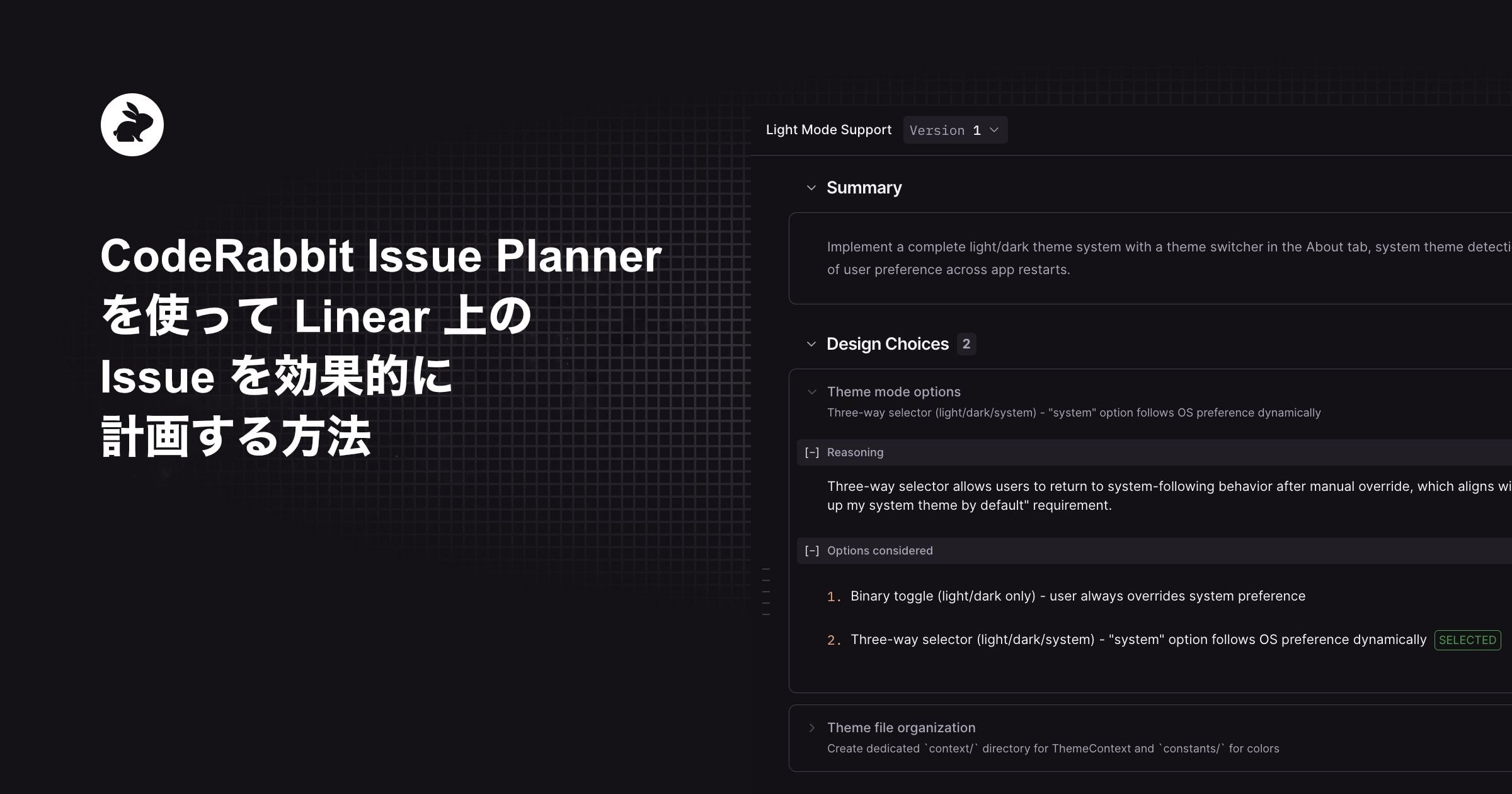
Summary
アーキテクチャやコーディング規約に合わせた、実装方針の簡潔な概要です。
Research
コードベースの詳細な分析結果です。関連ファイル、既存パターン、依存関係、設計上の判断など、この作業に影響する情報がまとめられます。通常であれば1時間かけて手作業で集めるコンテキスト、あるいはコーディングエージェントが完全に飛ばしてしまう情報です。
Design Choices
重要な設計判断ごとに、検討事項、考慮された選択肢、採用された選択肢とその理由が示されます。
「ライト/ダーク/システムの3択セレクターを使う理由」や、「themes/ ディレクトリを新設する理由」など、コードを書く前にチームでレビューすべき判断が整理されています。
コードを書く前に1時間読むあの時間を、代わりにやってくれる部分
Phased Tasks
実装を論理的でリリース可能な単位に分割したタスク群です。
フェーズ1で基盤を整え(AsyncStorage や ThemeProvider)、フェーズ2でアプリ全体に統合し、フェーズ3で既存コンポーネントを移行する、といった構成になります。
エージェントが最も好むプロンプト:具体的なもの
Agent-Ready Prompts
コーディングエージェント向けの、機械可読な指示です。フェーズ単位、または統合プロンプトとして利用できます。
抽象的な提案ではなく、実際に使える具体的な指示が含まれます。特定のファイル、既存パターン、考慮すべきエッジケースまで明示されています。
具体的なファイルパス、実際の型定義。「ダークモードお願い」で生じる迷いはありません。
チャットによる調整
プランエディタの右側にはチャットパネルがあります。ここから、計画内容への質問、設計判断への異議、変更要望を出せます。
「この設計では option 3 の方が良い」と思えば、その理由を伝えるだけです。特定のステップをもっと詳しく知りたい場合も、質問すれば対応してくれます。
フィードバックに満足したら Redo Plan をクリックします。CodeRabbit が内容を反映した新しい計画を生成します。すべてのバージョンは保存されるため、問題があれば以前の計画に戻せます。
小さな Issue であれば、自分の知識だけで十分かもしれません。しかし少しでも複雑な内容であれば、計画をチームと共有することを勧めます。リンクを送って指摘してもらうだけで、多くの問題を事前に防げます。実装前にプロダクトオーナーが計画をレビューすれば、「そんなつもりじゃなかった」という事態を避けられます。
返事をしてくれるラバーダック
コーディングエージェントへ引き渡す
プランに満足したら、作業したいフェーズを選び IDE Handoff をクリックします。
CodeRabbit の IDE 拡張(VS Code、Cursor、Windsurf、その他互換エディタ)がインストールされていれば、プロンプトがそのままエージェントの入力欄に渡され、すぐに実行できます。
IDE 拡張がない場合は Copy prompt を使い、Claude Code や GitHub Copilot など任意のツールに貼り付けてください。内容も品質も同じです。
3つ対応済み。あなたのお気に入りも[たぶん]次です。
はじめ方
CodeRabbit を初めて使う場合は、まずリポジトリにインストールしてください。GitHub、GitLab、Bitbucket、Azure DevOps に対応しています。クイックスタートガイド に従えば、5分以内に完了します。
すでにコードレビューで CodeRabbit を使っている場合は、準備は半分終わっています。CodeRabbit ダッシュボードで Integrations を開き、Linear ワークスペースを接続してください。これにより Issue Planner が使えるようになるだけでなく、Linear Issue に紐づく受け入れ条件と PR を突き合わせるレビューも可能になります。
接続後は、Issue に @coderabbitai plan とコメントするだけです。数分後に最初の Coding Plan が生成されます。その後 Auto-Planning を設定すれば、チケットを開く前から計画が用意される状態になります。
なぜ CodeRabbit Issue Planner なのか
Linear は what と when を扱います。
CodeRabbit Issue Planner は how を扱います。
コーディングエージェントにその場しのぎの計画を頼むのとは異なり、コードベースに根ざし、関連 Issue を踏まえ、実装前にチームでレビューできる計画が得られます。
CodeRabbit は OSS プロジェクトでは無料で利用でき、プライベートリポジトリ向けには無料トライアルがあります。実際の Issue で試して、エージェント単体の実装計画とどれほど違うかを確認してみてください。
詳しくはこちら。 Issue Planner を今すぐ試す