
Catch the latest, right in your inbox.

GetStarted in2 clicks.
OpenAI customers can apply their existing OpenAI spend commitment towards CodeRabbit through the OpenAI Marketplace, simplifying procurement.
We benchmarked Claude Sonnet 5.5 for AI code review against Sonnet 5 and Opus 5.5: which bugs it catches, how fast it reviews, and what a review costs.
Cua AI co-founder Francesco Bonacci explains why developers need to check whether AI agents finish the job, even when the tools they use work correctly.
OpenAI customers can apply their existing OpenAI spend commitment towards CodeRabbit through the OpenAI Marketplace, simplifying procurement.
We benchmarked Claude Sonnet 5.5 for AI code review against Sonnet 5 and Opus 5.5: which bugs it catches, how fast it reviews, and what a review costs.
Cua AI co-founder Francesco Bonacci explains why developers need to check whether AI agents finish the job, even when the tools they use work correctly.
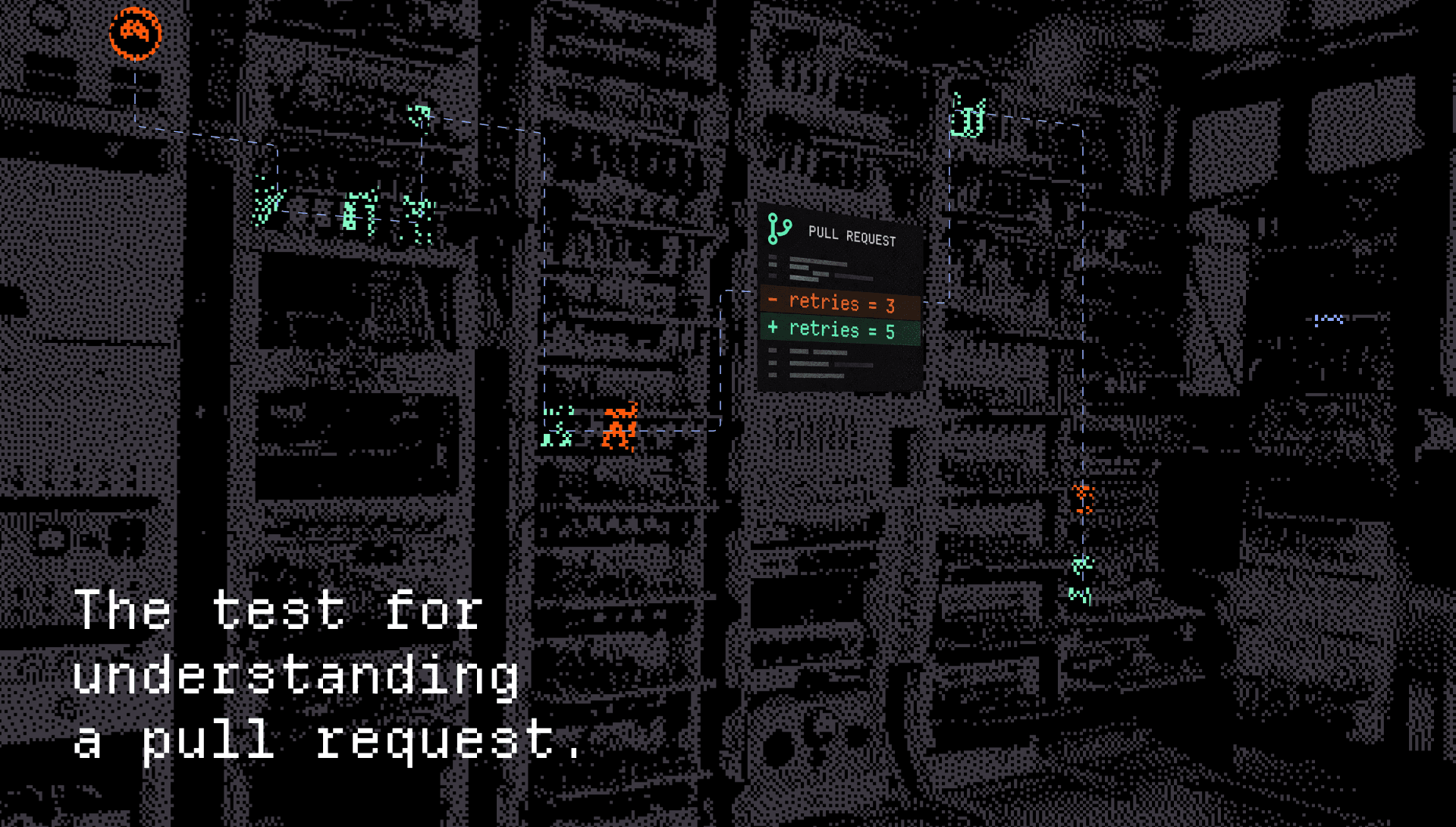
Agents can open a pull request that spans an API, a migration, and tests in minutes. Change Stack connects the change’s intent, behavior, and dependencies to the code so reviewers can verify the explanation before they merge.
We tested Opus 5.5 against our production reviewer to see which bugs it catches, which it misses, and whether higher reasoning effort actually improves the results.
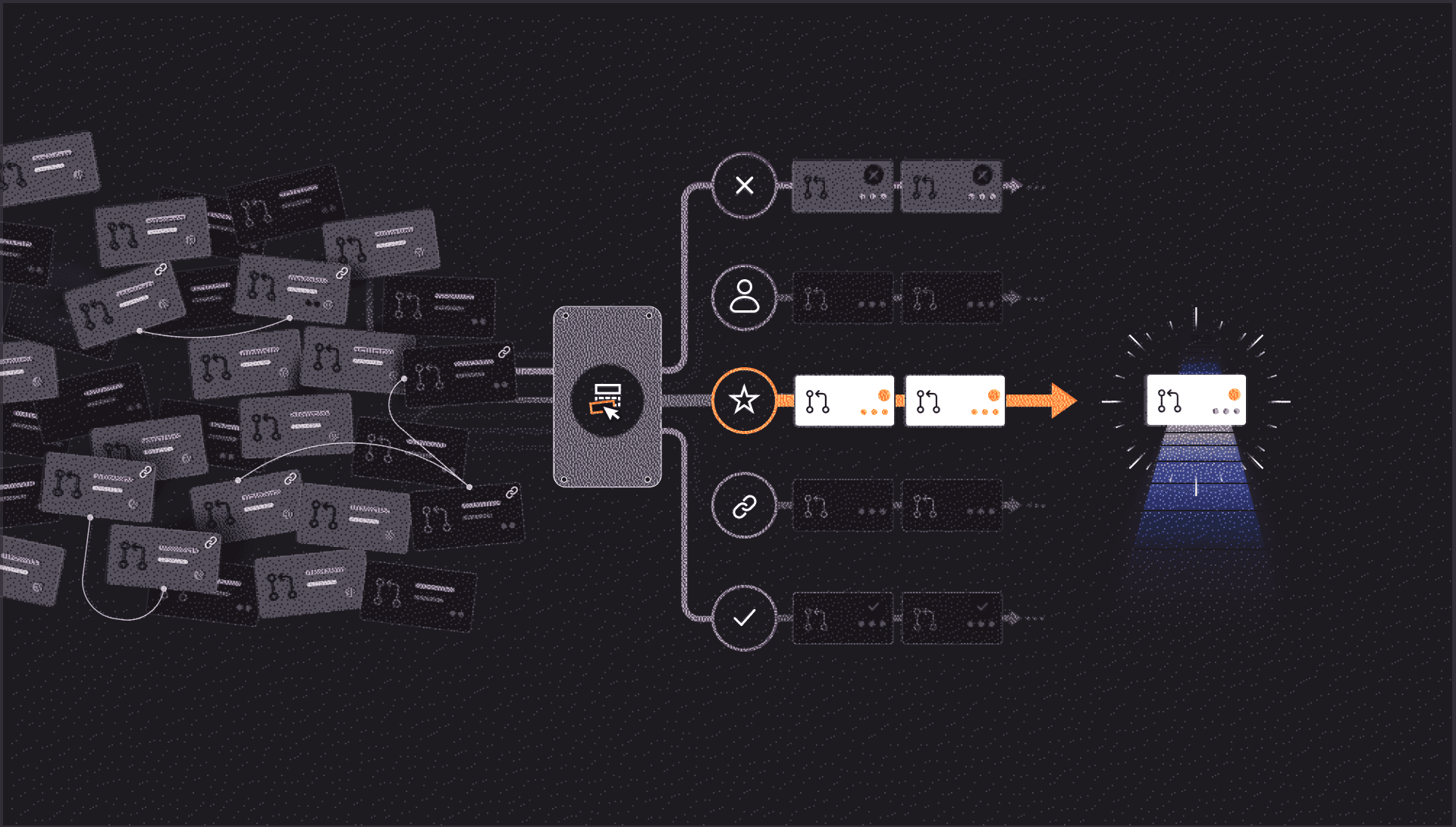
CodeRabbit Triage brings priority, risk, ownership, and next-action context into the pull request queue so reviewers know where their attention is needed.
CodeRabbit Triage brings priority, risk, ownership, and next-action context into the pull request queue so reviewers know where their attention is needed.
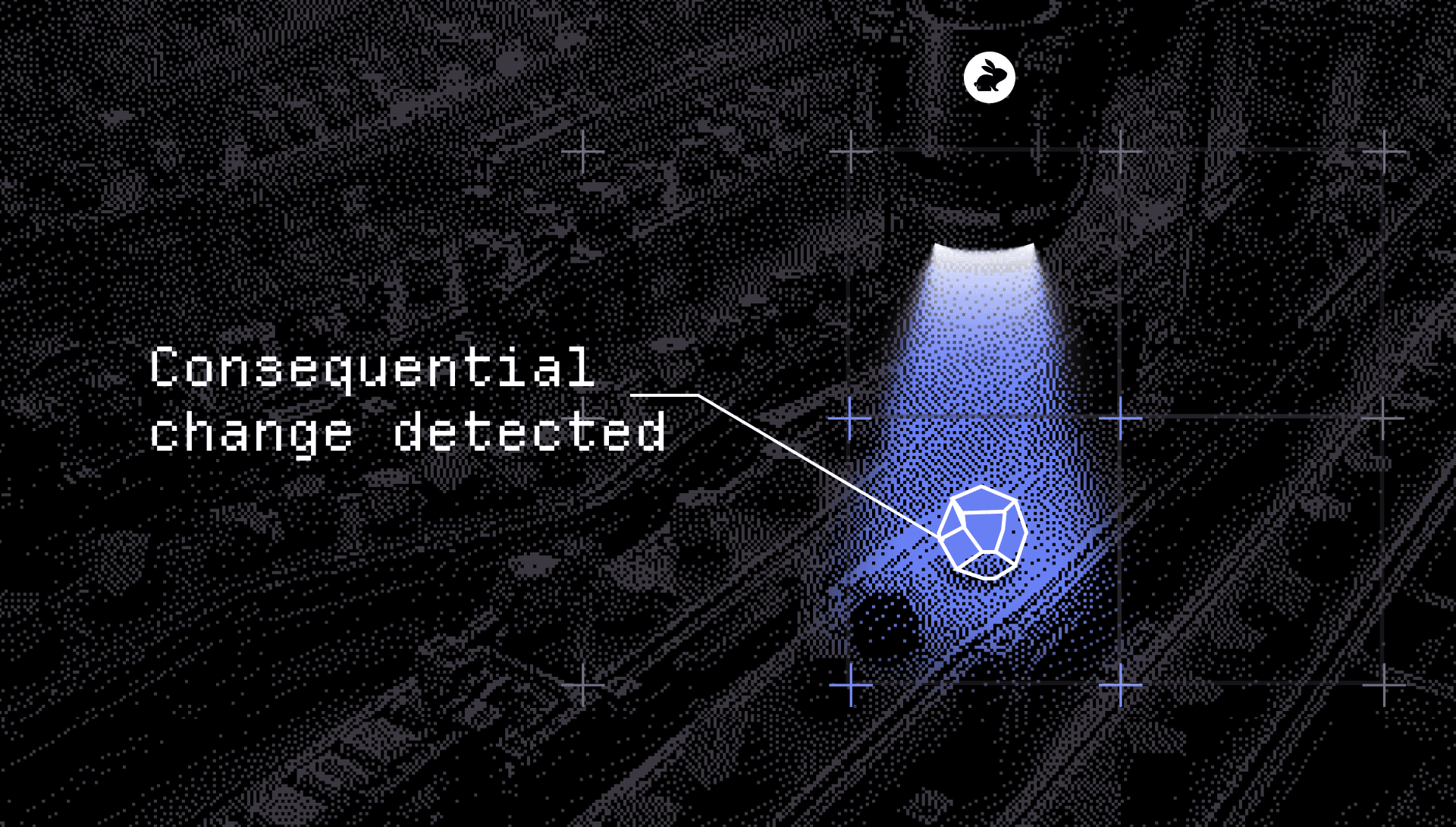
Agents can write, test, and revise code across much of the delivery process. But teams still need a reliable way to decide which changes can move automatically and which require accountable human review.
Engineering taste develops through experience, exploring alternatives, and learning from use. How can teams preserve those opportunities in an agentic SDLC?
Dig into insights about our products, use cases, and POVs
