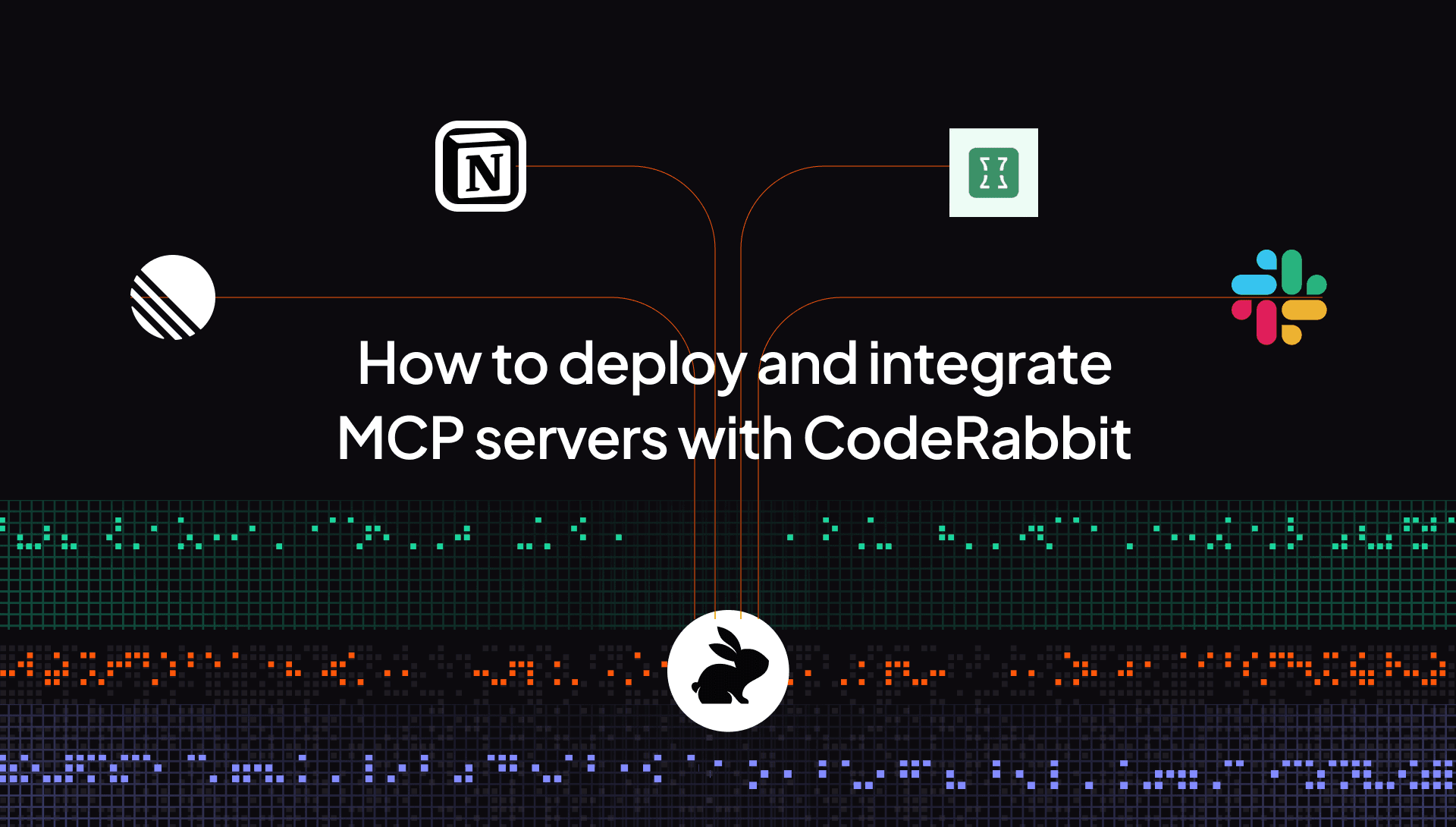
MCP servers integrate AI agents into software applications to carry out system-related tasks based on users’ requests. Platforms like Slack, Sentry, Notion, and GitHub Copilot have adopted MCP-style services to expose their features to AI-driven applications.
CodeRabbit is part of this shift, acting as an MCP client that enables users to provide contexts and perform the best code reviews. It’s also the first AI code review platform that supports context (data) from multiple sources, such as business requirements stored in Confluence, system information from your CI/CD pipeline, or any internal MCP server.
In this tutorial, you will learn how to set up a Slack MCP server, retrieve channel data, and pass it as context into CodeRabbit to generate code reviews that incorporate discussions from your team workspace, ensuring that every review aligns with the project goals.
Why use MCP with CodeRabbit?
The primary benefit of using MCP servers with CodeRabbit is to deliver relevant data that makes code reviews more insightful and actionable. Other benefits include:
- Enriching code reviews with context from multiple tools.
CodeRabbit enables you to retrieve relevant information from Slack, Confluence, CI/CD pipelines, or internal MCP servers so reviewers understand the reasoning behind changes. CodeRabbit can pull relevant information from Slack threads, discussions, and messages to understand the code logic and reasoning behind every code change.
- Making informed and precise reviews
With access to data from MCP servers, CodeRabbit gains a better understanding of the project’s logic and goals. For instance, the Slack MCP server grants CodeRabbit access to team messages, enabling it to perform code reviews that are consistent with business requirements and development objectives.
Prerequisites
Before we proceed, you need to have the following tools installed to set up the MCP server and integrate it with CodeRabbit:
Slack channel – An existing Slack channel is required to fetch messages and provide context for the AI code reviewer.
MCP Server for Slack Workspaces - Provides an easy and structured way to expose Slack conversations via the Model Context Protocol (MCP). It already includes built-in Slack API methods (fetching messages, threads, replies, etc.) and is lightweight, Docker-ready, and easy to configure.
Claude Desktop – Allows you to test the Slack MCP server locally before connecting it to CodeRabbit.
Docker – Used to run and host the Slack MCP server in a container.
Ngrok – Used to create a secure public URL for the Slack MCP server, allowing CodeRabbit to access it from outside your local environment.
In this tutorial, you will:
Learn how to test the Slack MCP server locally with Claude Desktop.
Host the server on localhost using Docker.
Generate a public URL using Ngrok..
Integrate the MCP server with CodeRabbit.
Note: While Slack has been experimenting with MCP servers, they don’t currently have one available. This tutorial will cover how to create one yourself.
Set up Slack MCP server with Claude Desktop
Claude Desktop is an MCP client that connects to multiple MCP servers and uses them as sources of context. It allows you to add your MCP servers as connectors and test them locally before deploying them to CodeRabbit or any other platform.
Install Claude Desktop on your computer. Once the installation is complete, open the app and click Manage Connectors.
Select Developer from the sidebar menu, and click Edit Config to configure your MCP server using your Slack authentication tokens.
Follow the instructions in the GitHub repository to obtain your Slack authentication tokens and configure the Slack MCP server in Claude Desktop.
Update the claude_desktop_config.json file with the following JSON configuration.
{ |
The configuration above uses the xoxc and xoxd Slack authentication tokens to register the Slack MCP server as a connector in Claude Desktop. Once connected, Claude can perform tasks such as retrieving channel messages and using Slack context to enhance code reviews and responses.
Restart Claude Desktop to apply the updated configuration and activate the Slack MCP server.
Connect the Slack MCP server to CodeRabbit
In this section, you will learn how to run the Slack MCP server using Docker, generate a public URL for it, and integrate it with CodeRabbit to provide context-aware code reviews.
Before we proceed, open the Docker application.
Next, open your terminal and download the required files for the Slack MCP Server using the following commands:
wget -O docker-compose.yml https://github.com/korotovsky/slack-mcp-server/releases/latest/download/docker-compose.yml |
Update the .env file with your Slack authentication tokens.
SLACK_MCP_XOXC_TOKEN=<your_token> |
Start the MCP server using Docker Compose with the following commands:
# Create a dedicated Docker network |
Currently, the Slack MCP server is running on localhost at port 3001. To integrate it with CodeRabbit, it needs to be accessible via an HTTPS endpoint. This can be achieved using ngrok.
First, confirm that ngrok is installed by running:
ngrok --version |
Next, generate a public URL for your MCP server.
ngrok http 3001 |
The command above exposes your local Slack MCP server to the internet by generating a secure public URL. Use this URL to connect the Slack MCP server to CodeRabbit.
Open a new terminal and start the MCP Inspector to test the Slack MCP server using the following command:
npx @modelcontextprotocol/inspector |
This will launch the MCP Inspector UI, allowing you to verify that your MCP server is running correctly. In the Inspector, select SSE as the transport type and append /sse to the end of your ngrok URL
Once the MCP server is confirmed to be working, you can proceed to integrate it with CodeRabbit.
Integrate and test MCP servers with CodeRabbit
Sign in to CodeRabbit and select Integrations from the sidebar menu on your dashboard to add a new MCP server
Enter a name and your MCP server URL (for example, https://2bb0002c0e2c.ngrok-free.app/sse) to connect the server to CodeRabbit. Make sure no authentication method is selected.
After connecting the MCP server, you can use it to provide context in all your CodeRabbit code reviews.
To test the setup, create a GitHub repository, add it to CodeRabbit, and configure it to have access to your MCP server
Add a coderabbit.yaml configuration file to the repository to enable CodeRabbit to access and use the MCP server context during code reviews.
language: "en-US" |
To give the GitHub repository access to your MCP servers, find the GitHub repository and enable MCP servers
Next, enter the Path Instructions to ensure CodeRabbit checks for additional instructions before allowing PR merges to the code repository
From the image above, the File Path specifies which files CodeRabbit should review, while the Instructions field provides context on how it should handle those files. Based on the instructions given, CodeRabbit analyses the discussions in your Slack #dev channel and ensures that every pull request or code change in your GitHub repository complies with the guidelines defined in that channel.
Below is a screenshot showing the messages from the Slack channel
Here is the code review showing how CodeRabbit reads and adheres to the instructions:
You can check out the full demo to see how CodeRabbit reads team Slack discussions and reviews code based on those conversations.
💡 Best Practice: Pass only Important Data as Context
Irrelevant data can slow down your LLM and increase costs. Keep access limited to specific Slack channels or only include the necessary information for code reviews.
Next steps
In this tutorial, you learned how to integrate the Slack MCP server into CodeRabbit to perform contextual code reviews. CodeRabbit also supports multiple MCP servers by default, including Notion, GitHub Copilot, Sentry, Asana, and many others. That you to enhance code reviews and generate context-aware answers with ease.
Using the same approach, you can integrate other contexts or data sources via MCP servers to enable CodeRabbit to generate accurate and actionable responses for your queries.
Check out more tutorials and articles on MCP Servers and CodeRabbit:
Interested in trying CodeRabbit? Start a 14-day trial.